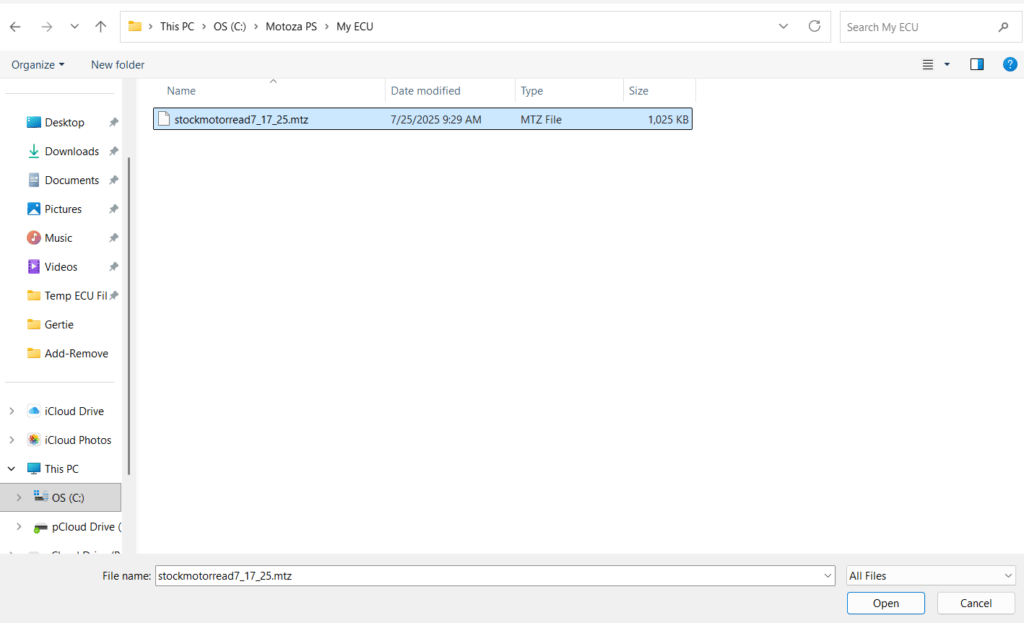
If you've just saved a log, a read, or downloaded your files and they do not appear to be where you KNOW you saved them, here's how to find them. (This is most commonly a Windows 11 issue).
Motoza PS saves your read and your logs on your C drive by default. Use File Explorer, the yellow folder icon on your desktop to navigate to the correct folder. Your read will be saved to This PC > OS (C) > Motoza PS > My ECU. You can also copy C:\Motoza PS\My ECU and paste it into your File Explorer search bar. Your logs will be in This PC > OS (C) > Motoza PS > My Logs or copy C:\Motoza PS\My Logs
These steps will work if you've chosen a different path for your files, like your desktop or documents folder.
Or, if you've gotten there and don't see anything even though you know for darn sure you just saved a file. Don't worry, it's not you, it's Microsoft. If you're looking at something like this, pinky swear, your files exist.
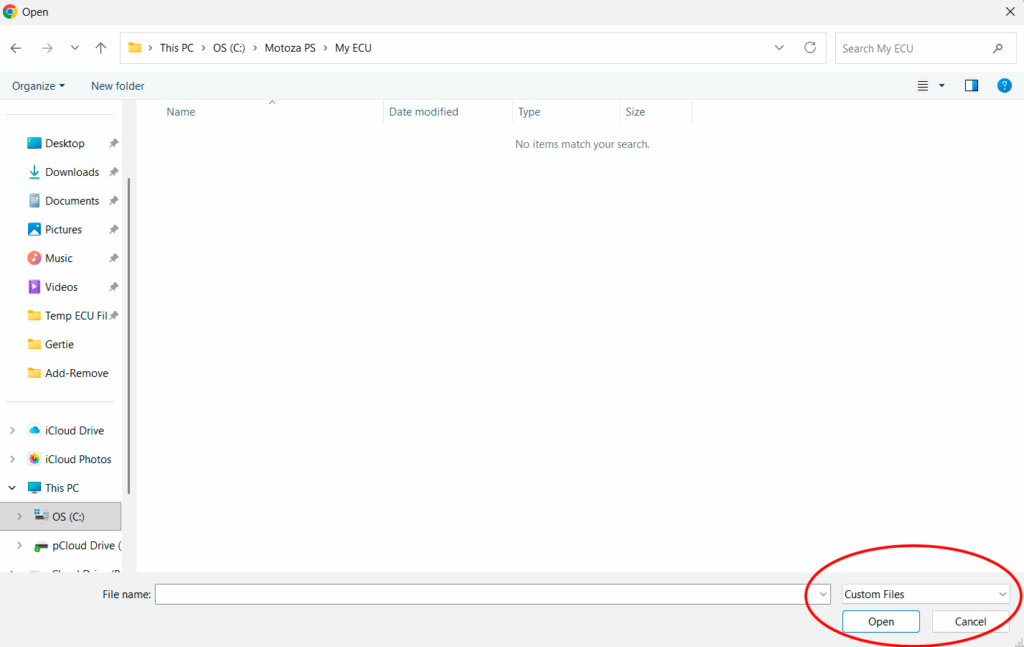
See the red oval? That's the key to happiness, friends. Ok maybe not, but work with us. Click the drop down and change Custom Files to All Files and voila! Look what you've found. We'll spare you the nerdy Windows 11 UI rant, but if you know you've saved a file somewhere, this should help.